
Tutorials
How to Get a Daily AI Briefing (No Coding Required)
Set up a personalized AI briefing that arrives every morning — covering exactly the sources and topics you choose. Step-by-step, no coding needed.
Daigest Team2026.04.04

Your Daigest feed can do more than just sit there. Copy it to Notion, share it on LinkedIn, or listen on the go—here's how.

When you want to use your feed elsewhere, you can easily copy it.

Tip: Paste feeds like weekly team updates or decision logs into ChatGPT or Claude to quickly share context. Instead of explaining "what's happening with our team" every time, share the context with a single feed.
When you want to share a feed with your community or team, you can create a share link. Share links are read-only and presented in an easy-to-read format with a table of contents.
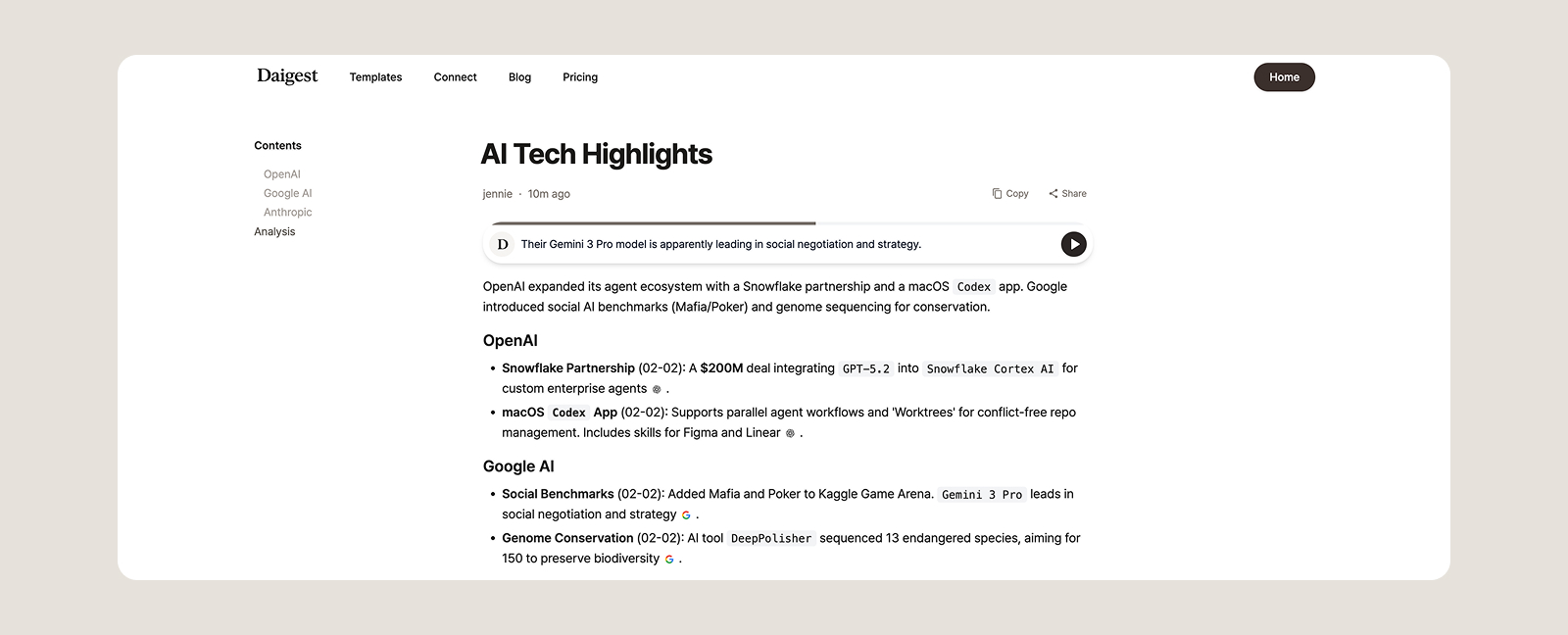


Tip: Version Sharing and Overwriting
- Version Sharing: You can create a new share link each time your feed updates. Perfect for sharing specific snapshots like "First Week of January Insights".
- Overwrite: Update an existing share link with the latest content. Great when you want to share weekly reports using the same link.

Listen to your feed while commuting or working out. AI converts your text to natural speech.

Tip: Once you generate audio, it's also available on shared links. Use it together when sharing your feed.

Need more audio? Check out the Pro plan.
Don't stop at just creating feeds—use copy, share, and audio features to consume information your way.
Start using your feeds at Daigest today!
Set up a personalized AI briefing that arrives every morning — covering exactly the sources and topics you choose. Step-by-step, no coding needed.

Not sure which sources to add to your briefing? Topic pages have them pre-organized by subject. Browse, pick, and add.

AI newsletters are curated by someone else. RSS readers require you to do the reading. Source briefings let you pick your own sources and have AI generate a briefing from exactly what you care about. 5 minutes to set up, 3 minutes to read.
Overwhelmed by information? Daigest organizes it for you
Try Free