
Tutorials
How to Get a Daily AI Briefing (No Coding Required)
Set up a personalized AI briefing that arrives every morning — covering exactly the sources and topics you choose. Step-by-step, no coding needed.
Daigest Team2026.04.04

Every time your document syncs, you can get the updated content sent straight to your email or Slack channel. Here's how to set it up.
In the document editor, click the Setting tab. Scroll down to find the Get Notified section.
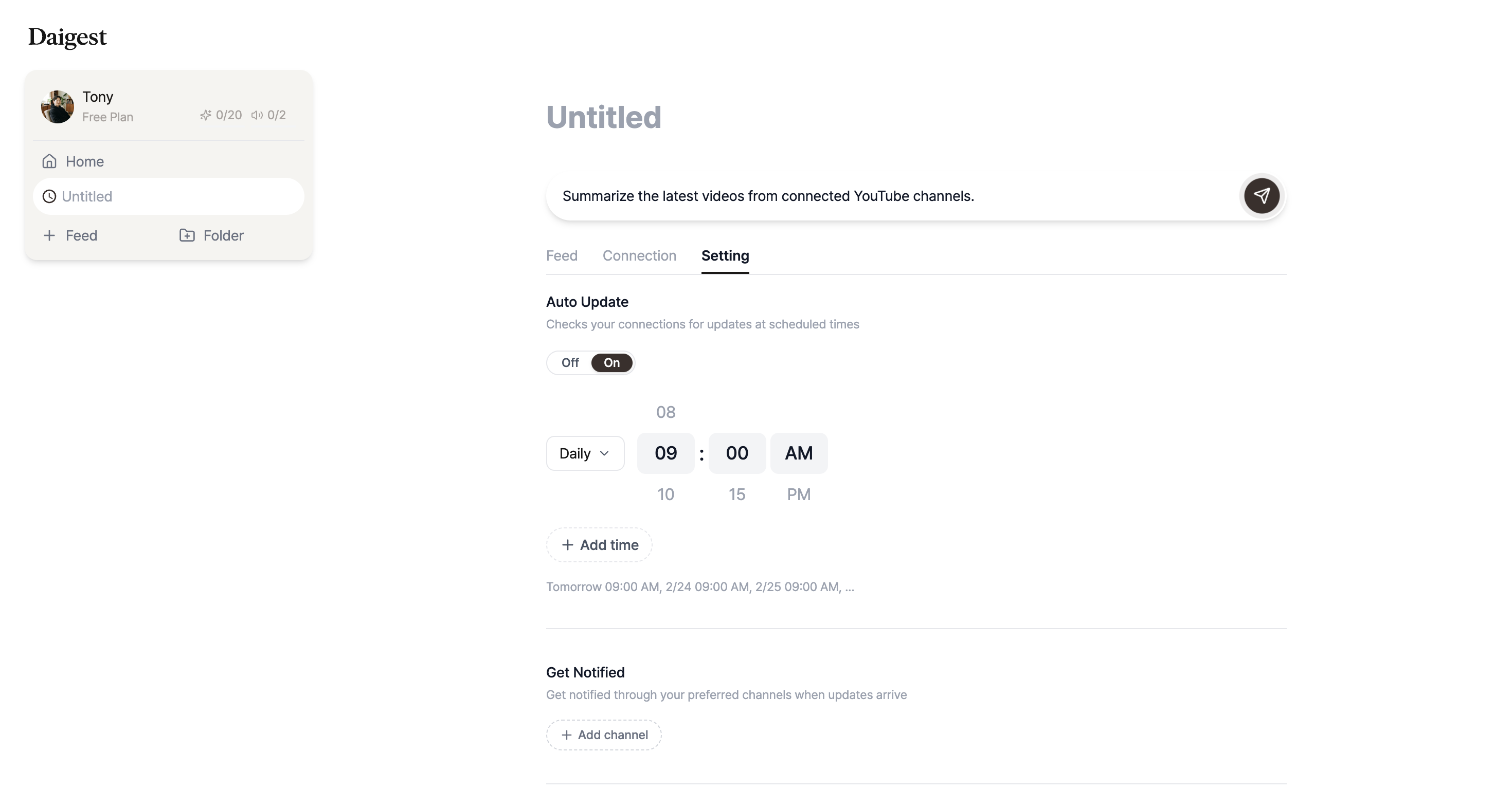
Notifications only work when scheduling is enabled and sources are connected. Make sure to set up a schedule first.
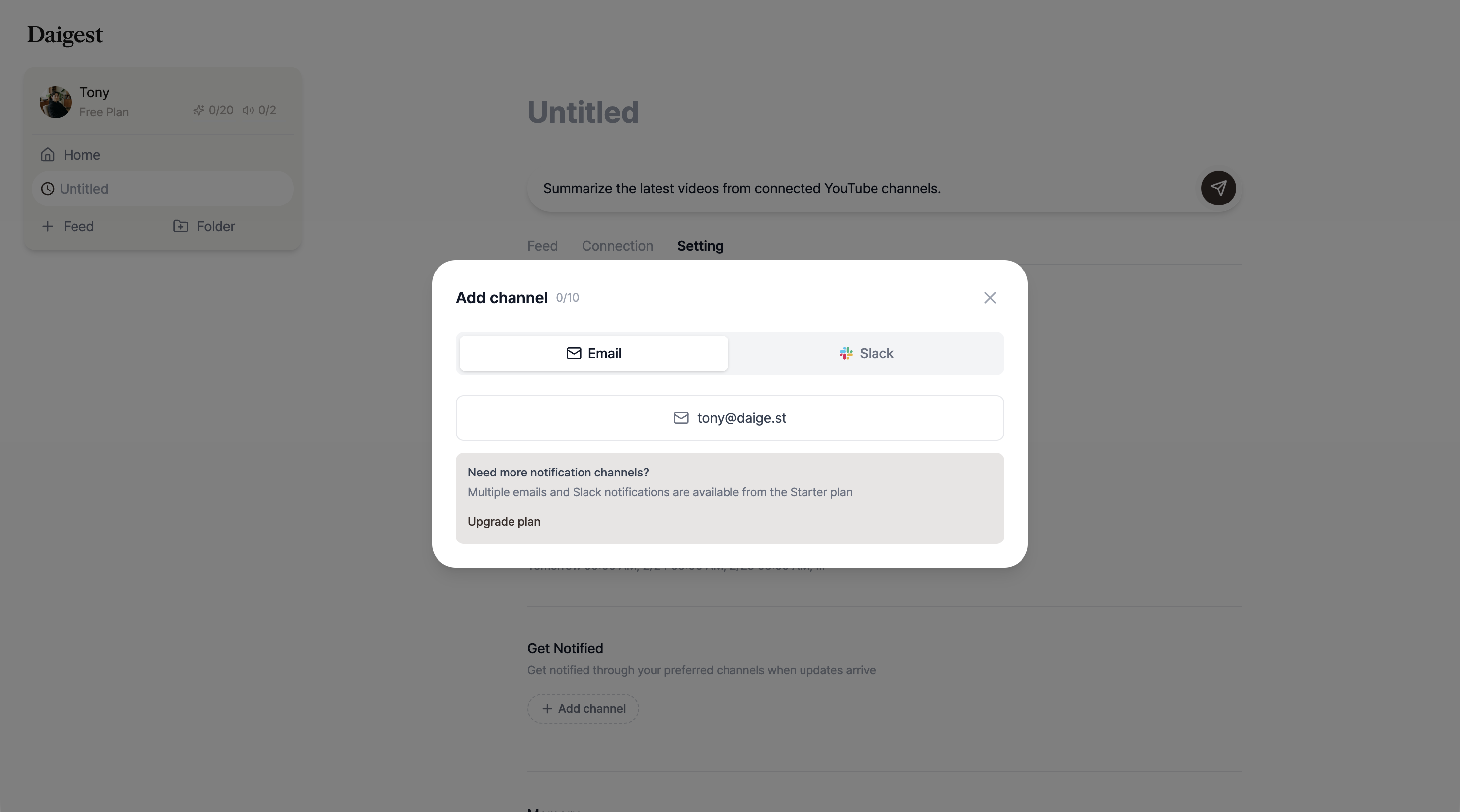
Click the + Add channel button to open the channel selection modal.
On the Free plan, you can receive notifications to your account email only. Just click the email button and you're done!
Starting from the Starter plan, you can add multiple email addresses. Want to notify your teammates? Enter email addresses separated by commas.
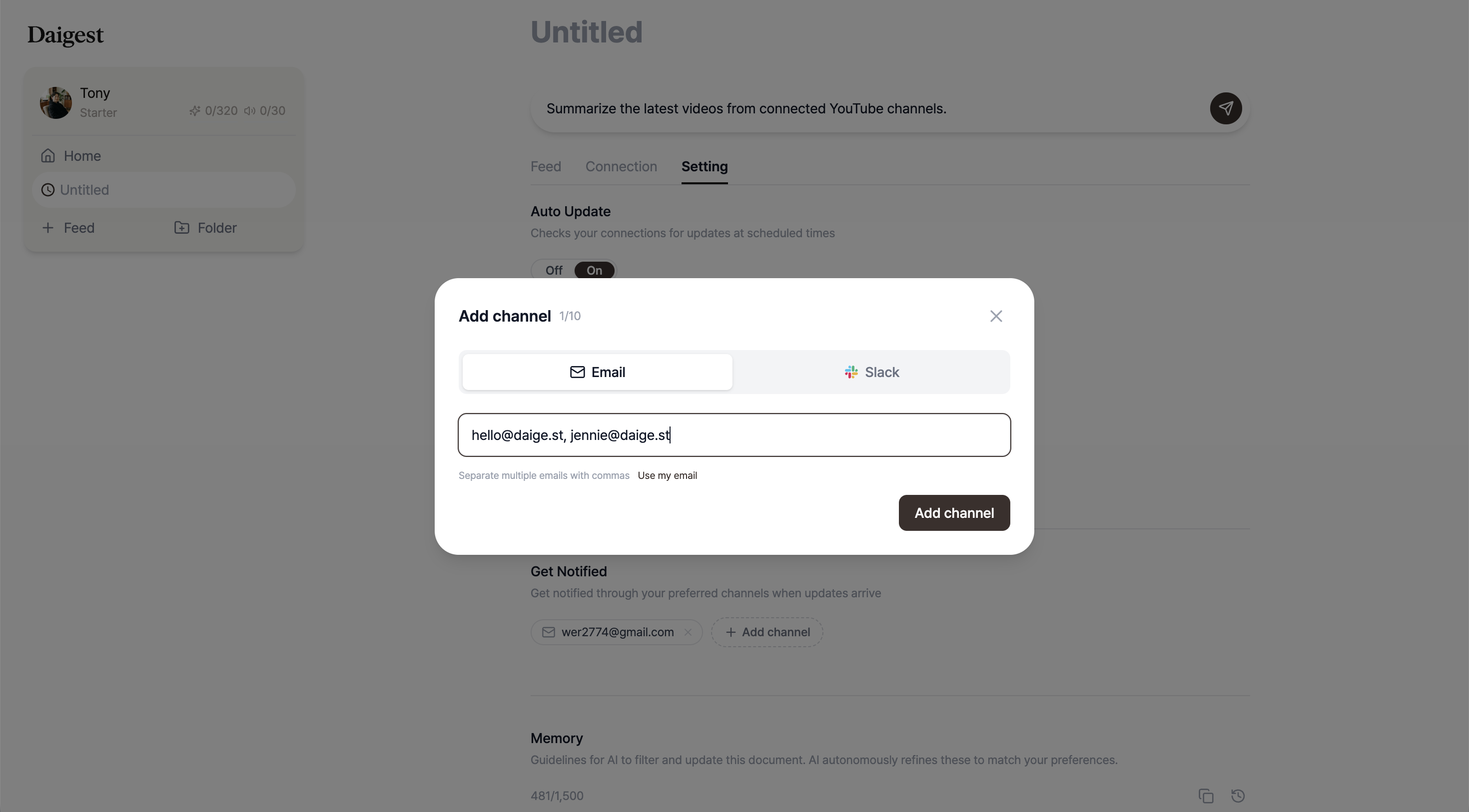
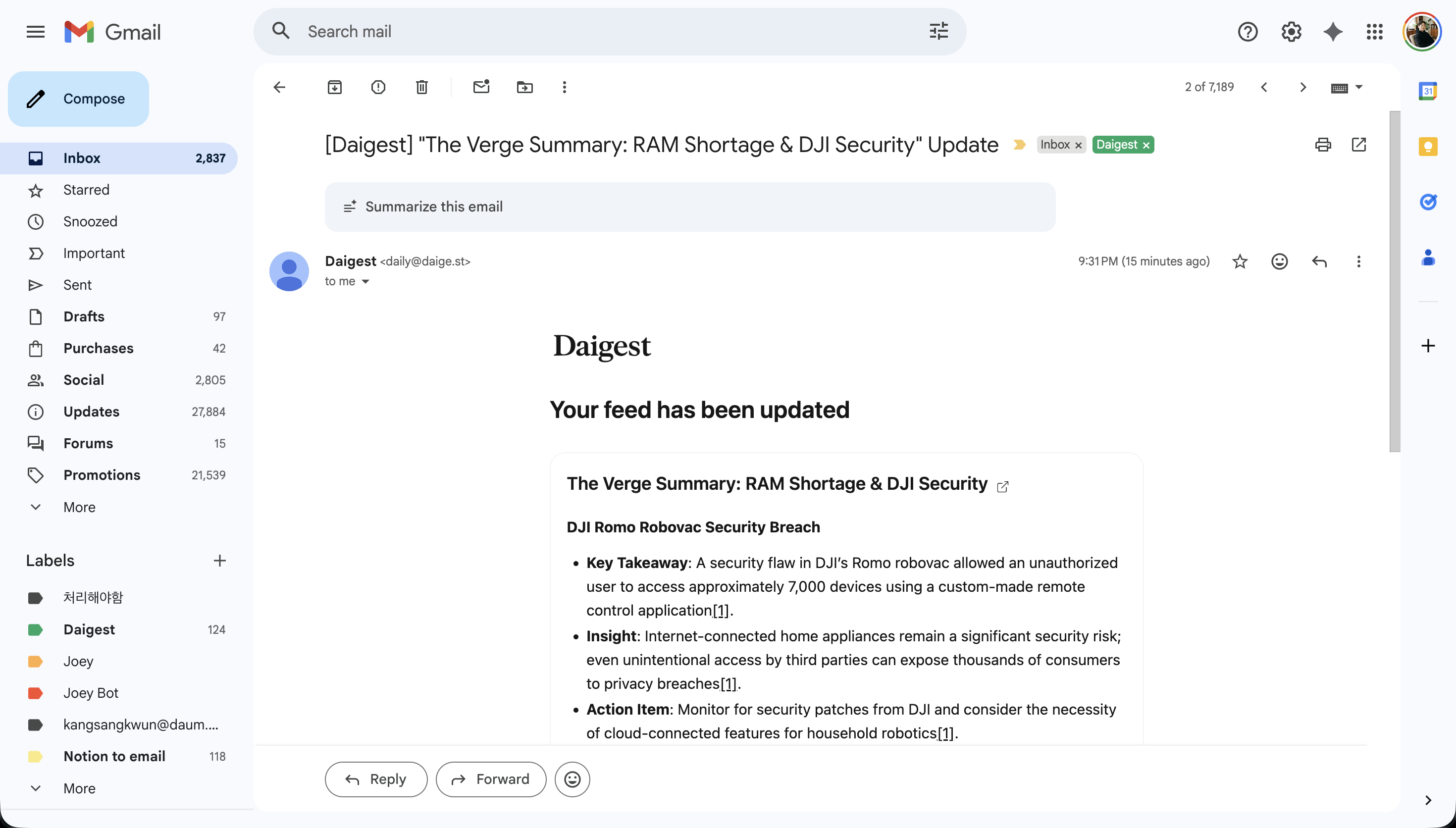
,) to add them at onceWhen your document is updated, you'll receive an email like this:
Slack notifications are available on the Starter plan and above. When your document syncs, the update gets posted to your chosen Slack channel.
In the add channel modal, click the Slack tab. If Slack is already connected, you'll see your workspaces and channel list. Select the channel where you want to receive notifications.
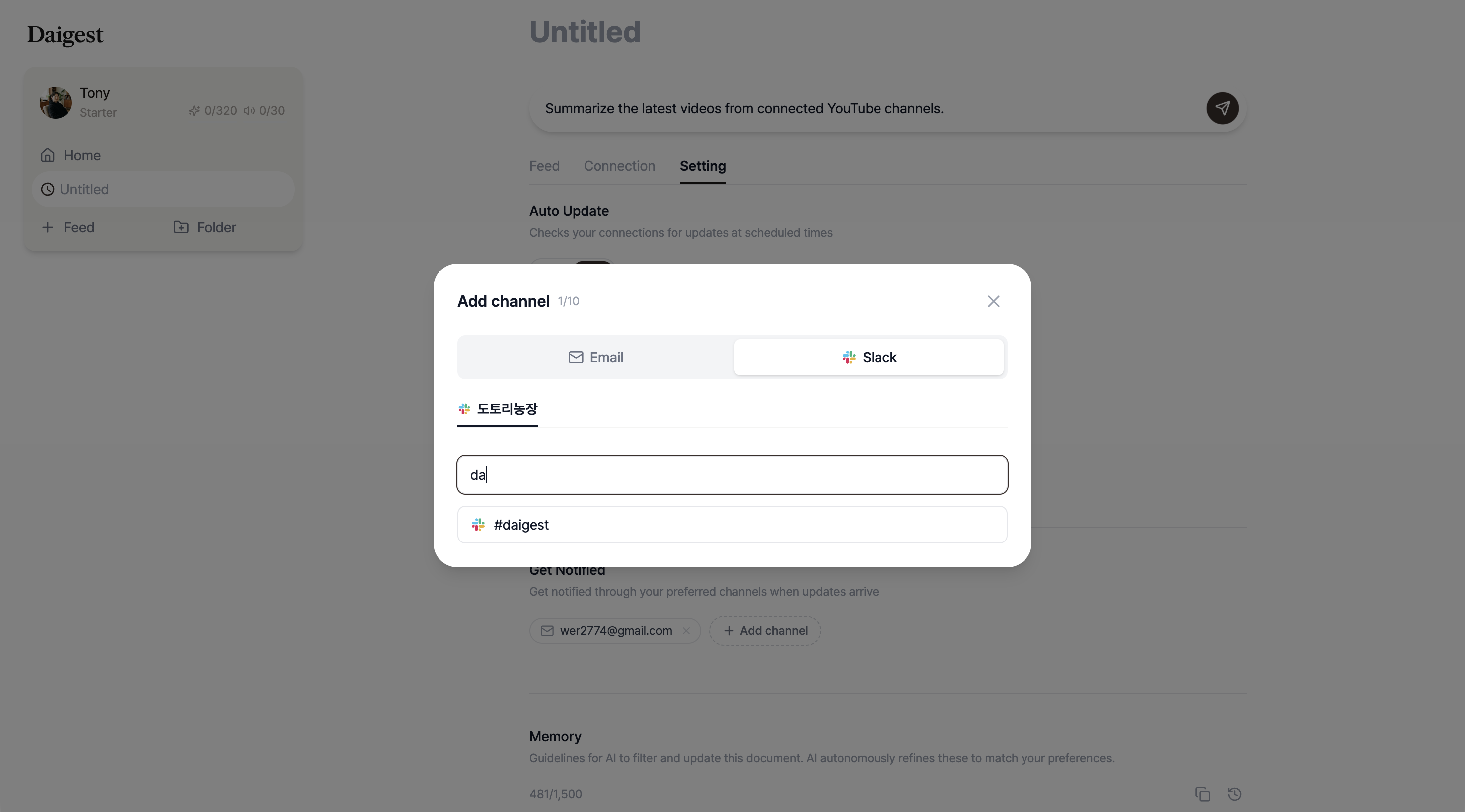
If Slack isn't connected yet, click the Connect Slack link to set it up first.
Slack notifications post the document title and link to the channel, with the full update content organized in a thread.
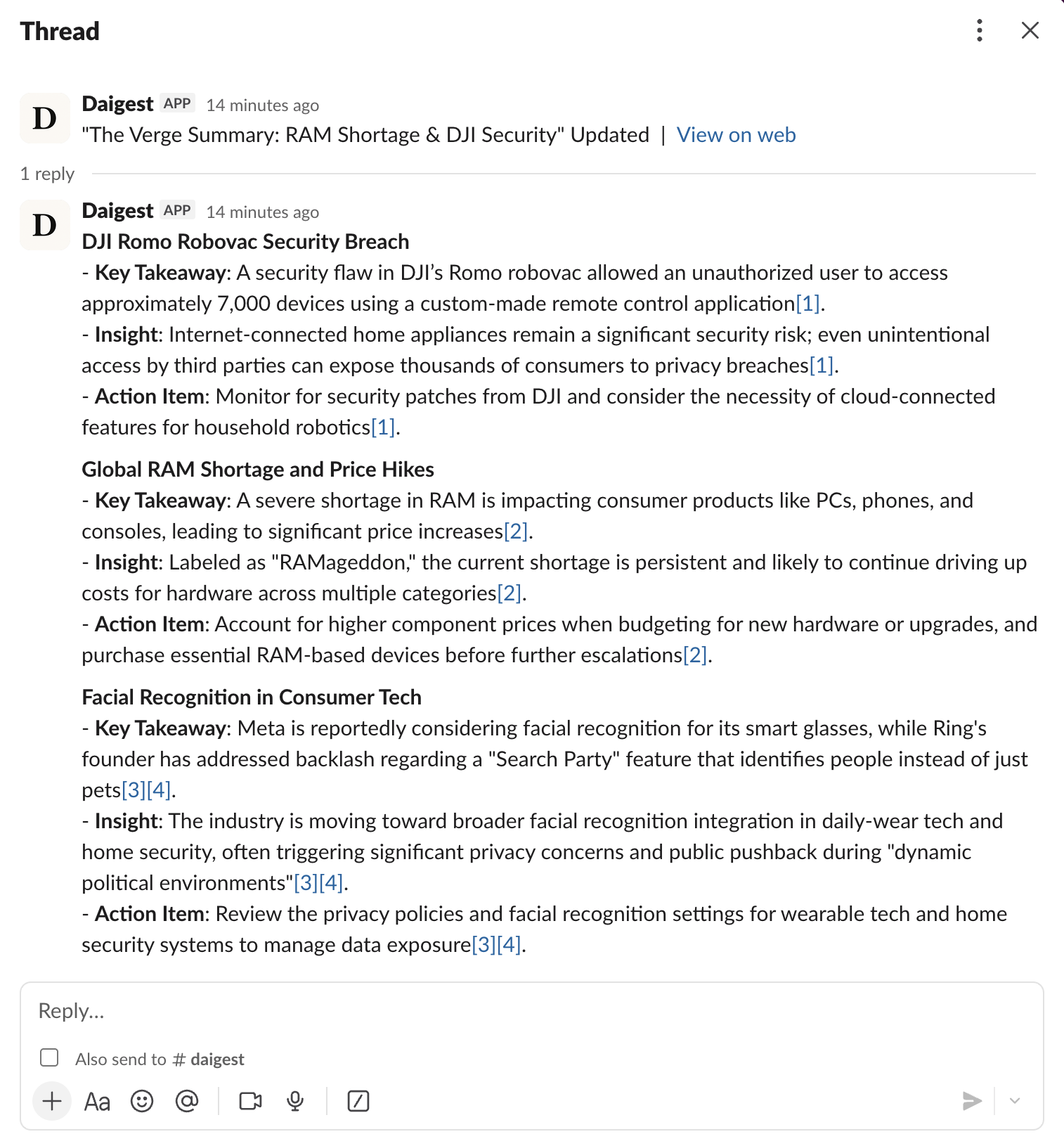
Your configured notification channels appear as chips in the notification section. Emails show the address, and Slack shows #channel-name.
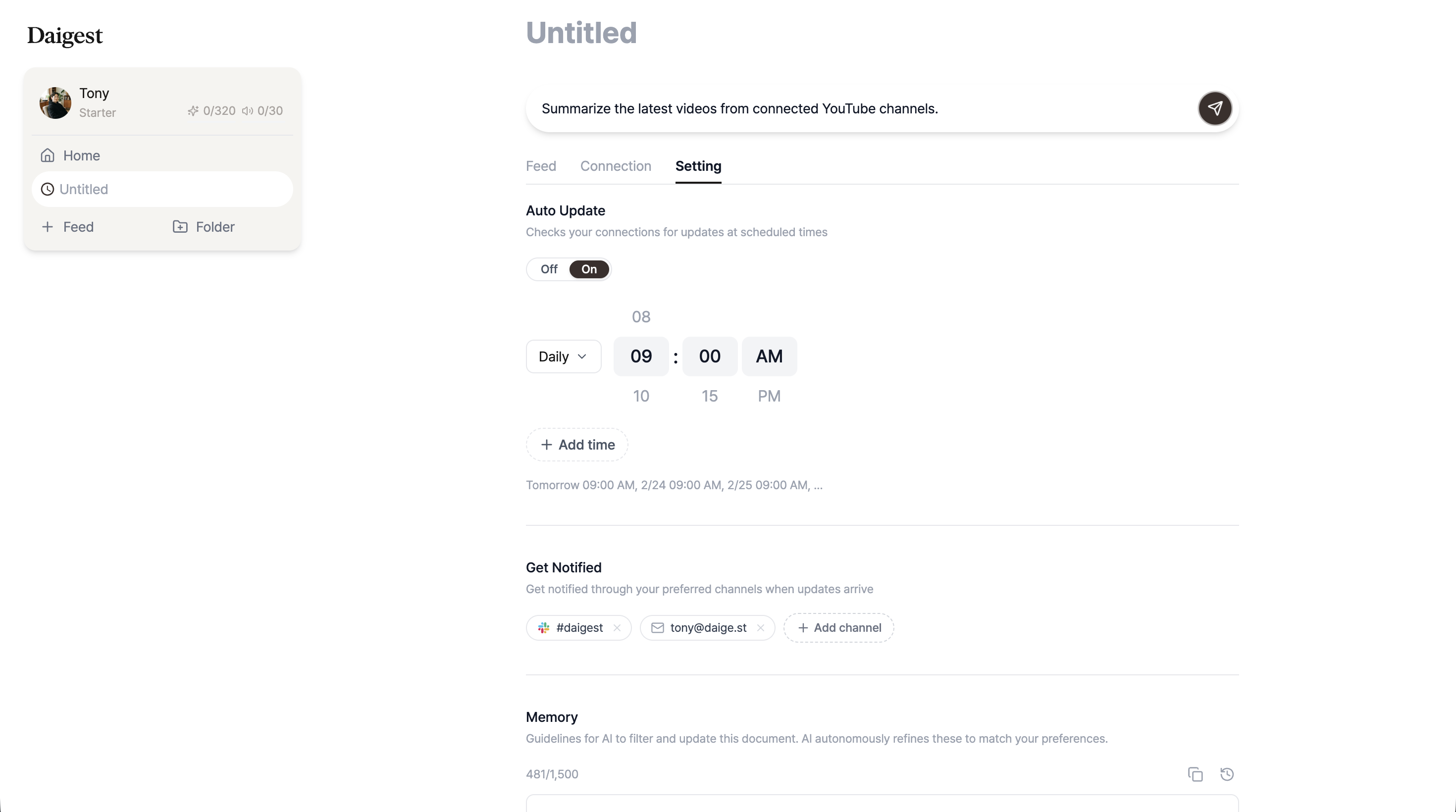
To remove a notification channel, simply click the X button on the chip.
| Feature | Free | Starter | Pro |
|---|---|---|---|
| Email notifications | 1 (your email) | Multiple emails | Multiple emails |
| Slack notifications | - | 1 channel | 1 channel |
Need more notification channels? Check out plan upgrades.
Notifications are sent when documents are updated according to their schedule. Manual edits do not trigger notifications.
If you're not receiving notifications, check the following:
Remove the existing channel, then add a new one.
Slack notifications are available from the Starter plan onwards. See plan comparison for details.
You can set up notifications right now on Daigest.
Set up a personalized AI briefing that arrives every morning — covering exactly the sources and topics you choose. Step-by-step, no coding needed.

Not sure which sources to add to your briefing? Topic pages have them pre-organized by subject. Browse, pick, and add.

AI newsletters are curated by someone else. RSS readers require you to do the reading. Source briefings let you pick your own sources and have AI generate a briefing from exactly what you care about. 5 minutes to set up, 3 minutes to read.
Overwhelmed by information? Daigest organizes it for you
Try Free